Set up templates in Notify and link them to BOPS
To be able to send letters and email from BOPS, you need to use GOV.UK Notify to:
create email templates for emails to consultees
create letter templates for neighbour consultation letters and site notices
add your council’s logo, if you want it to appear on letters.
BOPS will automatically add content to your emails and letters before they are sent out.
Step 1: Set up your templates
Navigate to the ‘Templates’ page.
Email template
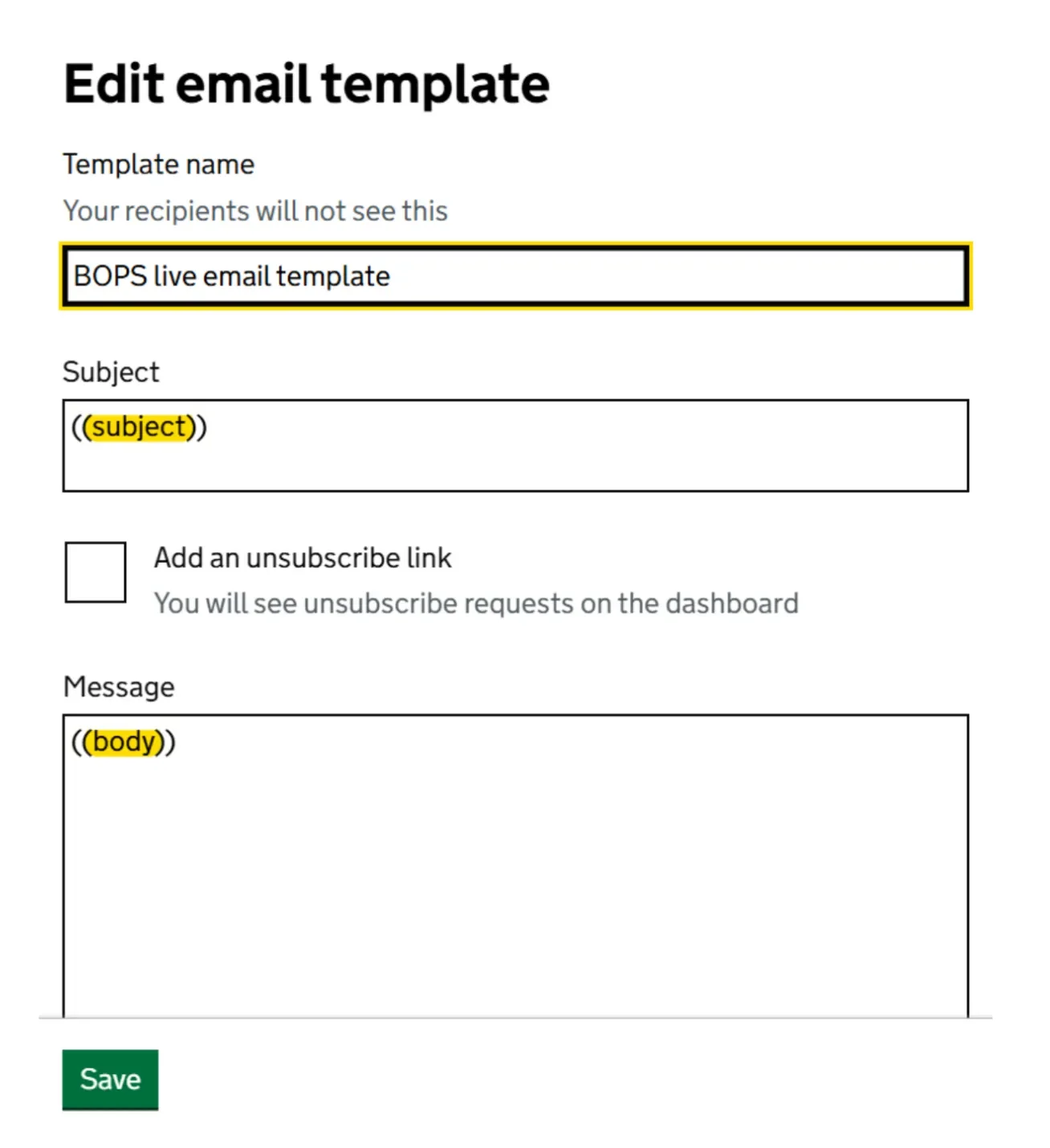
Select ‘New template’ and choose to create an email template.
Give the email template a name, for example ‘BOPS email template’ and enter the subject and message text exactly as shown in the screenshot below. Then, save the template.
Letter template
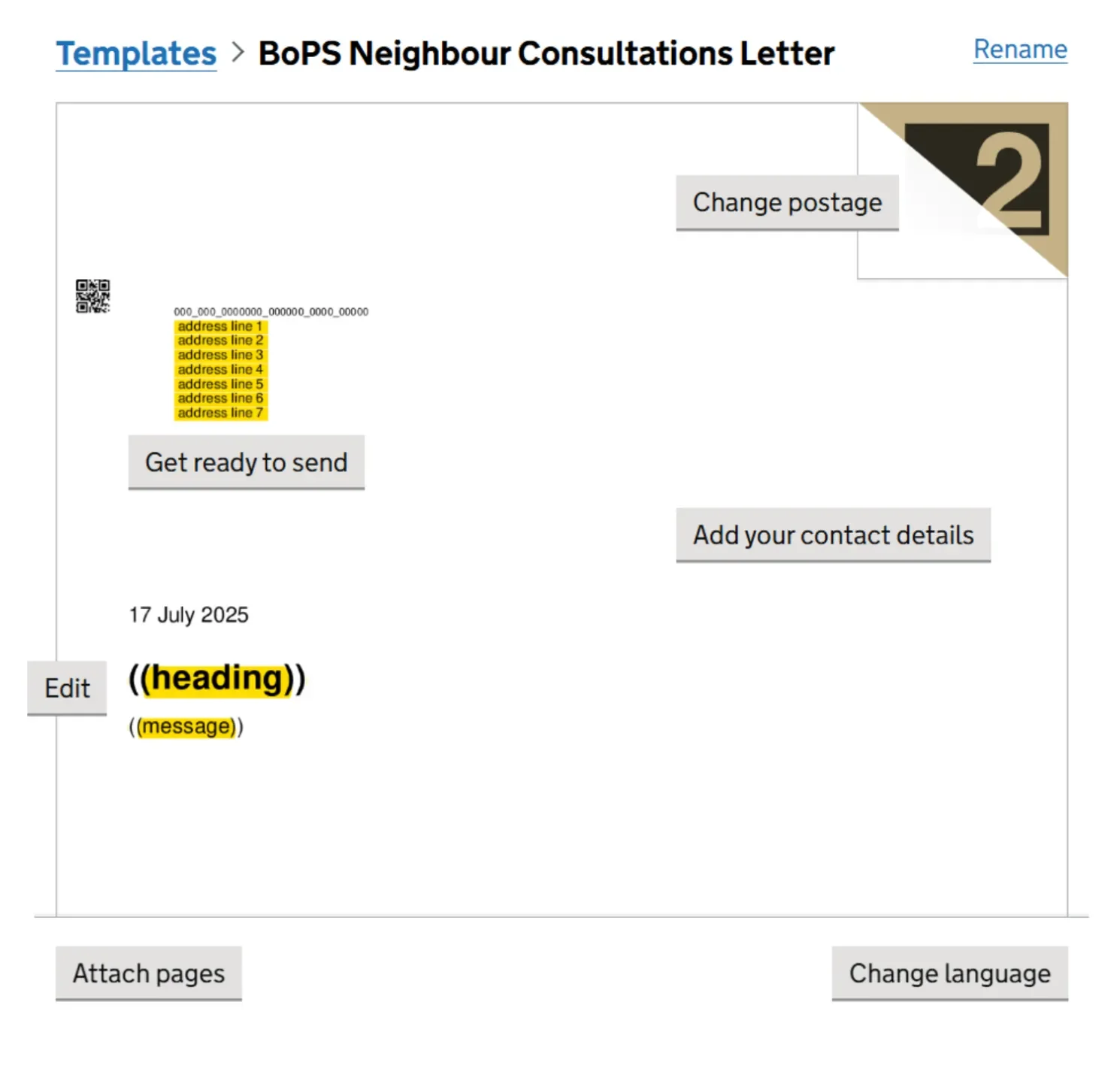
Select ‘New template’ and choose to create a letter template.
Give the letter template a name, for example ‘BOPS consultation letter’ and enter the subject and message text exactly as shown in the screenshot below. Then, save the template.
SMS template
Select ‘New template’ and choose to create an SMS template.
Give the SMS template a name, for example ‘BOPS SMS’ and format the template as shown in the screenshot below. Then, save the template.
Step 2: Link templates to BOPS
Login to your BOPS admin account and navigate to the ‘Settings’ tab. On the left side bar, select ‘Manage GOV.UK Notify’.
You need to populate the template ID fields for your email, SMS and letter templates from GOV.UK Notify. To do this, open each template you created on Notify and copy the ‘Template ID’ codes. Paste each code into the relevant template field in BOPS and save.
Step 3: Test your templates
Before sending notifications to your users, it's important to test them. Use your testing environment to ensure that your notifications are formatted correctly and contain the intended information. Once you're satisfied with the results, you can start sending notifications to your planning service users from your live account.
For each template, select ‘send test’.
Follow the guidance to enter your email address, SMS, or the address you want to send to. For each test, you will be shown a reference number.
Login to GOV.UK Notify and navigate to the dashboard.
You can check the reference number for each test using the search box.
For letters, remember that you will be charged for letters that are sent, even if they are just tests. You can cancel your test letter by opening the ‘letters’ dashboard, opening the test letter, and selecting ‘cancel’.
-
Email template
-
Letter template