Saving pattern
This service pattern helps users to save progress in different ways in a non-linear workflow.
What it is
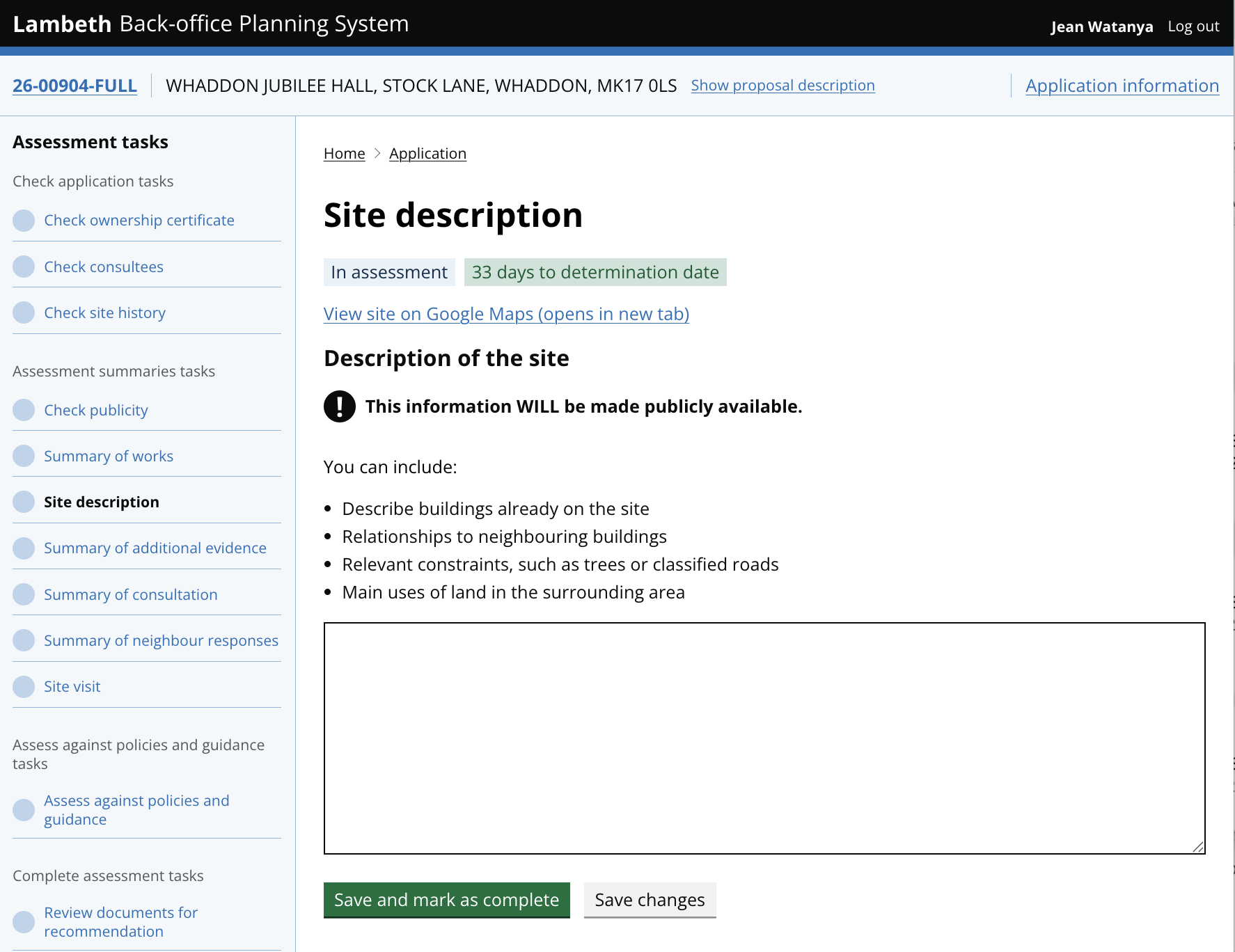
A pattern for back office services where a task that sits within a larger list of tasks needs two distinct save actions; one to save work in progress, and one to mark the task complete. These are paired with a specific success message to confirm with a user that their work has been saved successfully.
Professional planning work is rarely linear. Case officers often need to step away from an assessment to check a policy, wait for a site visit, or respond to an urgent query. The Saving Pattern ensures the interface remains a ‘source of truth’ throughout these pauses. By providing two clear actions, the system allows users to distinguish between work in progress and a finished task.
When to use this pattern
Use this pattern when:
the saving record affects the progress of work, for example, where another task is dependent on this one being completed
users are expert case officers who work across many tasks and many applications in parallel
the status of the work matters to others: the task isn't just for the case officers, it needs a clear ‘finished’ marker so that a supervisor, auditor, or the next person in the process knows exactly when it is ready for them to take over.
users need confidence that their work has been saved before they move on
When not to use this pattern
Do not use the saving pattern when:
data is captured automatically: if the interface uses ‘autosave’ for every field change, adding a ‘Save and mark as complete’ and ‘Save changes’ buttons is redundant and confusing.
the task doesn't trigger a next step, notify another colleague or require completion.
the action is irreversible (sending a notice, issuing a decision). Use a dedicated action verb instead, such as ‘Send’ or ‘Submit’, not ‘Save.’
How it works
The saving pattern provides a clear structure for how data is committed to the system. It uses a combination of buttons and links to distinguish between finality and progress.
Save and mark as complete
This is the primary action on the page. It is used when the case officer has finished all requirements for a specific task.
Result: The task has been saved and locked for further changes. The ‘Edit’ button replaces the ‘Save and mark as complete’ button.
Feedback: The page reloads and a green success message appears. The task status updates to ‘Completed’.
Save changes
This is a secondary action, often styled as a secondary button. It is designed for ‘work-in-progress’ scenarios where a task is too complex to finish in one sitting.
Result: The system saves the current input but keeps the task status as ‘In progress’. This prevents the user from losing work if they need to navigate away or wait for more evidence.
Feedback: A confirmation message appears to reassure the user that their draft has been saved successfully.

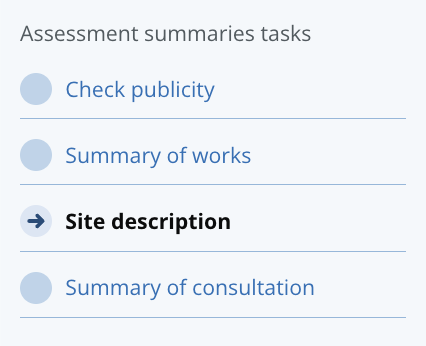
Task-specific actions
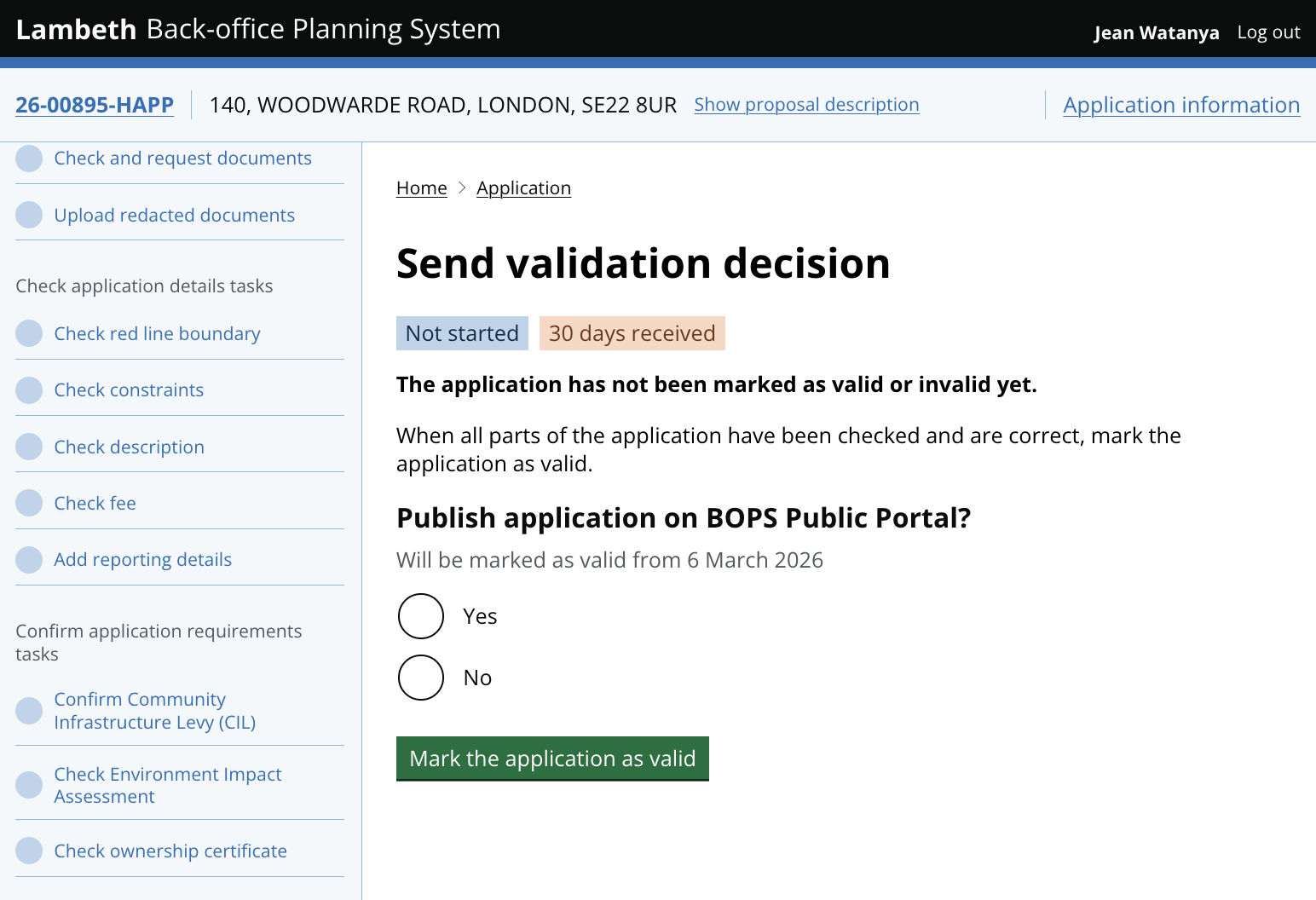
In some workflows, the saving action is tied to a specific legal or administrative trigger. Instead of a generic ‘Save,’ the button label describes exactly what will happen next.
Context: This is used when the act of saving also moves the application into a new state.
Examples: ‘Mark the application as valid’, ‘Send email to consultee’, or ‘Submit recommendation’.
Success messages
Every save action must be paired with a specific success message showing a green notification banner that names exactly what was saved and what state changed. "Site notice confirmation has been saved and the task has been marked as complete" is stronger than "Saved successfully". This is a critical feedback loop that builds trust, especially in a back office environment where users need to be certain that their professional judgments have been recorded.
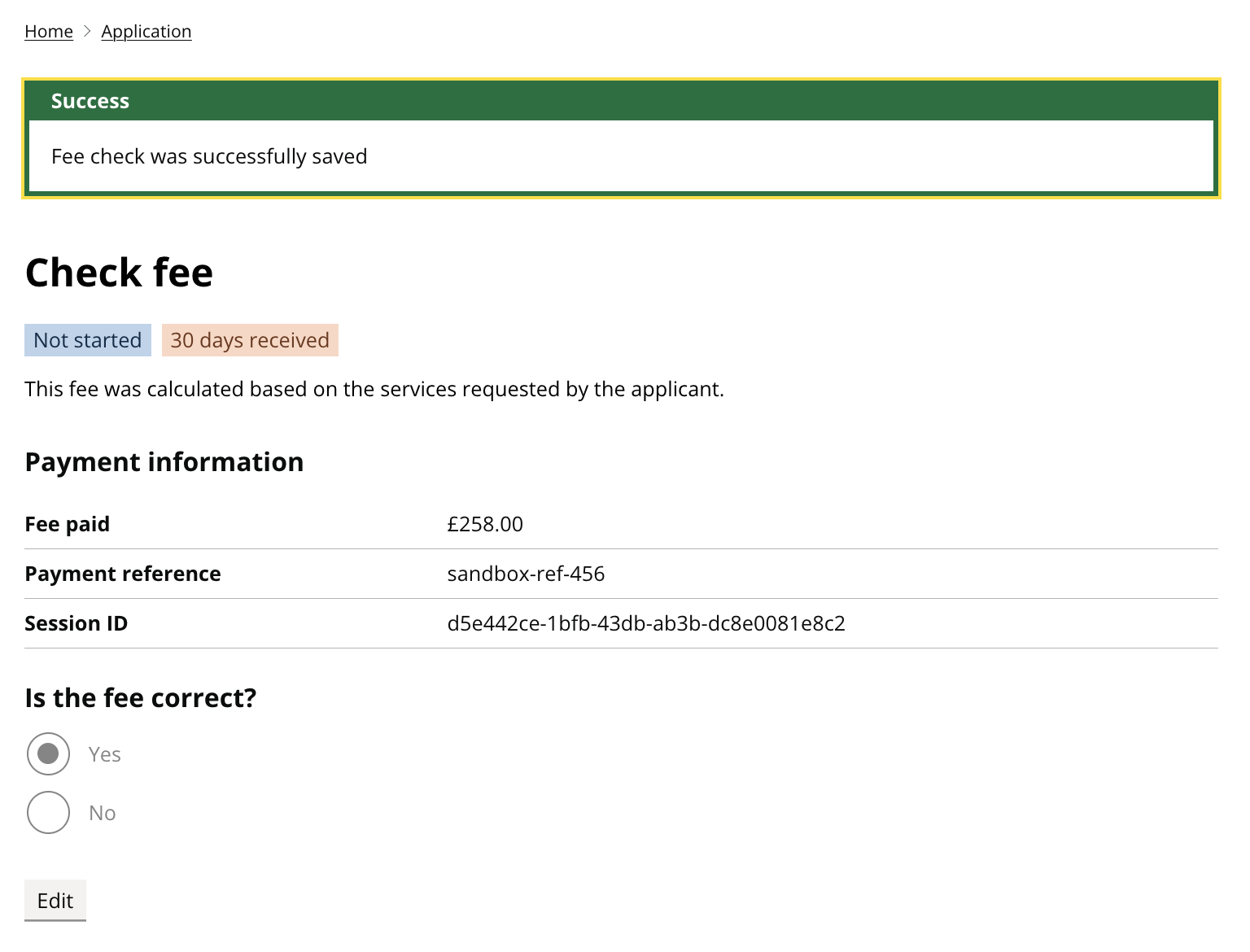
Keep the wording consistent across every task
The button labels and success messages should read the same way across every task in the service. Inconsistency could cause confusion: if one task says "Save and mark as complete" and another says "Finish task" and a third says "Done", the user has to re-learn the pattern every time.
Research and learnings
Why we created this pattern
The GOV.UK Design System contains a Button component to help users save their information. It uses green as the colour of the main CTAs (call to action) buttons. There are multiple text options on the button such as ‘Save and continue’ and ‘Save and come back later’.
In BOPS, we have adapted this component to the purpose of saving progress, because planning officers work on complex cases that are not likely to be done in one go. They need to save progress and come back to continue their task in the future.
We have created a few different versions of the Saving Pattern as we iterated the service. By the end of the project phase, we improved the consistency of the service and agreed to use this Saving Pattern across BOPS. We tested:
How users save a task when they complete it
How users save an incomplete task before coming back to complete it later
What they expect to see after saving a task to ensure that their work has been recorded
What indicator to use for updating the progress of the task in relation to the saving actions
How would users want to progress to the next task after saving the current task?
What we learned
‘Saving progress’ is not the same as ‘declaring done’. If we only provide one "Save" button, we force users to make a final decision before they are ready. By separating these actions, case officers can safely store their work in progress without accidentally triggering the next stage of the process.
Confidence matters more than speed. Users actually prefer a full page reload and a clear confirmation banner over a silent or instant save. A visible confirmation provides peace of mind that their work has been successfully recorded. Without it, users often feel the need to refresh the page or double-check their work, which wastes time.
Specific messages are better than generic ones. Generic messages like ‘Changes saved’ are less effective than specific ones. Naming the exact task, for example, ‘Site notice confirmation has been saved’, helps the user mentally check off that task. This reduces the urge to go back and re-open the task to verify the data.
Consistency builds trust. When every part of the service uses the same two-button pattern and the same success banners, the system becomes more predictable. Once a user learns the pattern on one task, they can navigate the rest of the application with much higher confidence and less hesitation.
Freedom to choose the next task. Some users suggested that the system should automatically jump to the next task once the current one is finished. However, we found that planning officers often choose their next task based on their own priorities or available evidence. By keeping the user on the same page (refreshed with a success message), we give them the autonomy to decide what to do next rather than forcing a rigid sequence.
This is an evolving pattern: The saving pattern has been tested with planning officers and has proven effective for BOPS workflows, but it continues to be refined.
For information about any of our patterns, get in touch.