
Checking information with an applicant
This service pattern is designed for expert users who need to check details or request information from an applicant or member of the public in order to continue in their workflow.
What it is
Before a planning application can be assessed, a case officer checks that the information submitted by an applicant is complete and correct. This checking stage is called validation. If something is missing or wrong, for example, a document is missing, a fee hasn't been paid, or a description doesn't match the plans, the officer needs to go back to the applicant and get the correct information before they can assess the application.
Getting validation right matters because planning teams cannot make decisions on incomplete applications. Every piece of missing or incorrect information creates delays later. When validation is thorough, the application moves cleanly into assessment. When it isn't, weeks get lost to back-and-forth that should have happened upfront.
Previously, this back-and-forth happened over email. Officers would write to applicants asking for missing information, applicants would reply (sometimes to the wrong thread, sometimes weeks later), and the context lived in individual inboxes where no one else on the team could see it. In BOPS, we wanted to bring this conversation into the system — structured, trackable, and consistent across every officer and every application.When to use this pattern
Use the case details header bar when:
you are displaying a task or form that belongs to a specific case, such as a planning application
officers will be moving between multiple tasks within the same case/ application and need persistent context about which case they're on
the page layout already has a GOV.UK header and you need an case specific second tier below it
When to use it
Use this pattern when:
building any new feature that allows officers to request information from applicants or other front end users
the interaction requires the officer to send a structured request to the applicant and receive a structured response
the applicant's response follows one of 3 formats (agree/disagree, text, document upload)When not to use this pattern
Do not use this pattern when:
the page is not associated with a specific application (for example, a dashboard, search results, or admin pages)
you are showing a public facing page. This component is designed for back-office case officers, not applicants or members of the public
the application context is already prominent elsewhere on the page (for example, a full application detail page)How it works
When not to use it
Do not use this pattern when:
the communication is officer-to-officer (use internal notes instead)
the notification is automated and doesn't require a response
the communication happens after a decision has been made
How it works
The request lifecycle
Every request for information passes through the same 5 stages, regardless of type. The officer creates a request, the system notifies the applicant, the applicant responds, and the officer reviews the response.

The 3 types of response
While all 10 request types share this lifecycle, the applicant's response can fall into one of 3 categories:
Agree/Disagree: for example, checking a proposed change to a description or boundary, asking for a time extension, checking ownership
Free text: for example, asking for more information, asking for explanation of why the applicant has selected a particular fee
Document upload: for example, asking for a new drawing or revised site plan
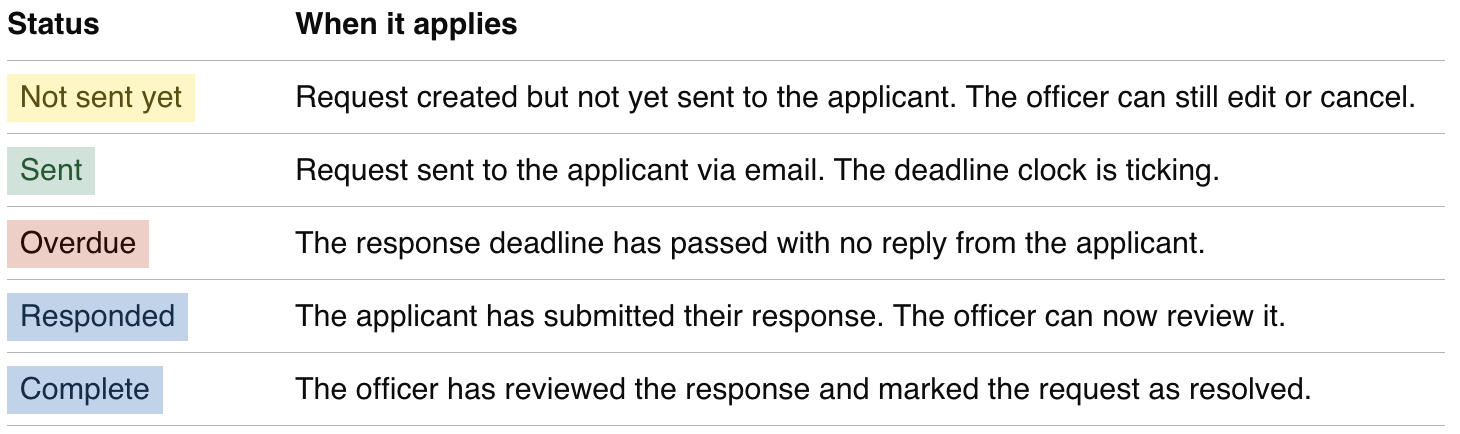
Status tags progression
The status tags progress through a fixed sequence as the request moves through the lifecycle. Every request to an applicant uses the same set of status tags. These are shown in a summary table and on individual request pages, where the officer can see what they’ve sent to the applicant.
Officer side: creating a request
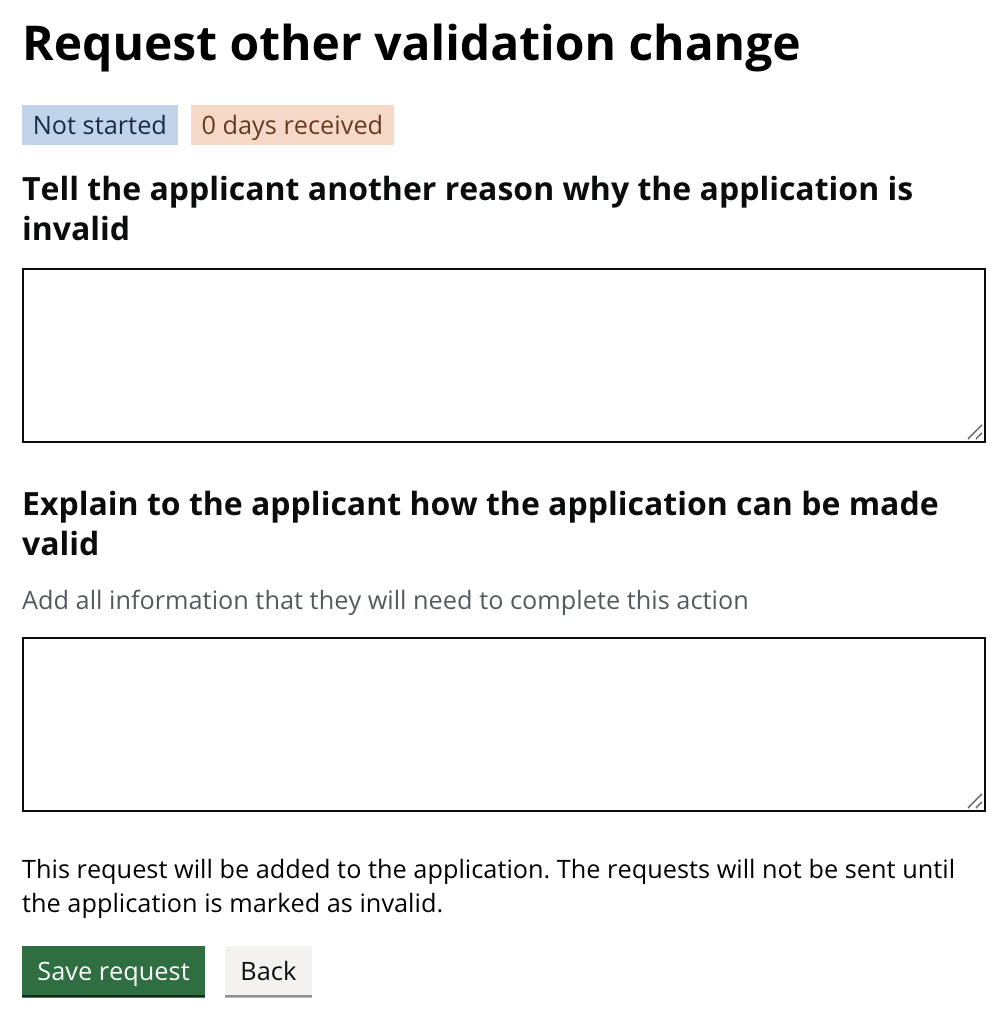
All request forms share a common structure: a heading, a context block showing what the applicant submitted, a reason field, and type-specific fields. The wireframe below shows the generic skeleton.
After sending
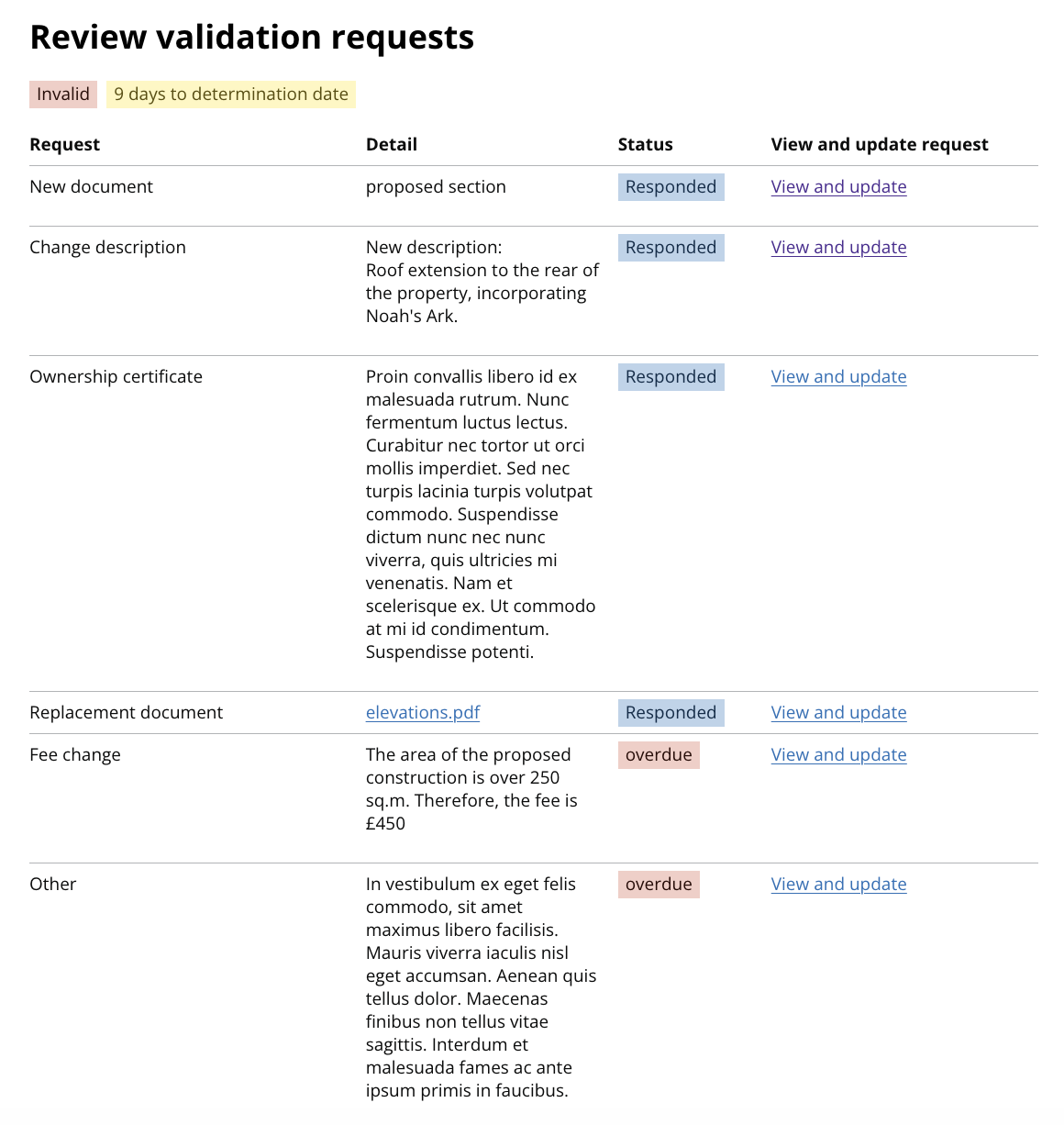
Once the request is sent, the officer sees a summary of the request with its current status and the request details. The status will change until the applicant responds.
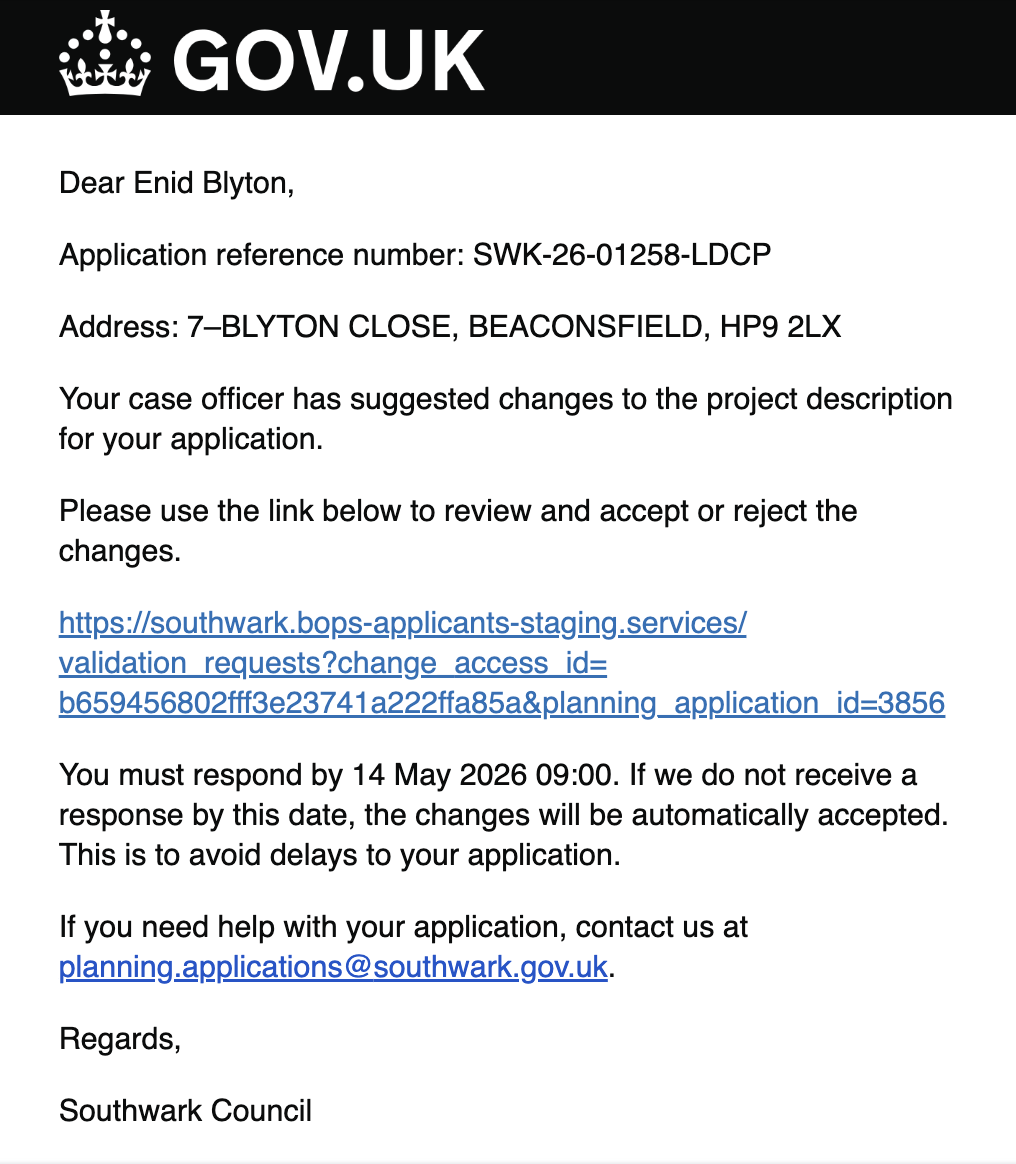
System notification
When a request is sent, the system emails the applicant with a secure link to respond. All types use the same email template structure; only the subject line and body details vary by type.
Applicant landing page
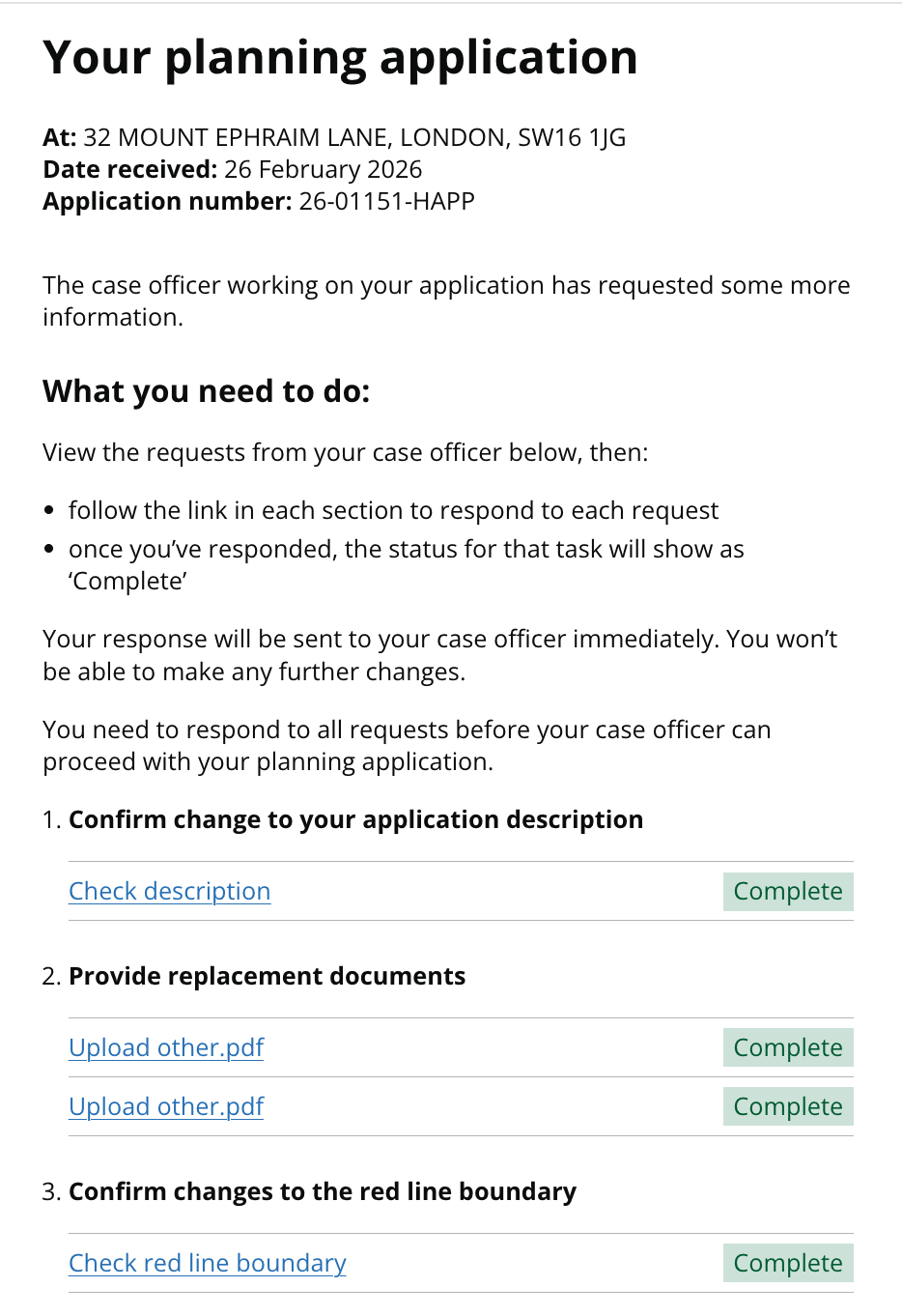
After clicking the email link, the applicant sees a landing page listing all open requests as a task list. This page aggregates requests across all types — the applicant works through them one by one.
Response mechanisms
All 10 request types use one of three response mechanisms. The mechanism determines the form the applicant sees.
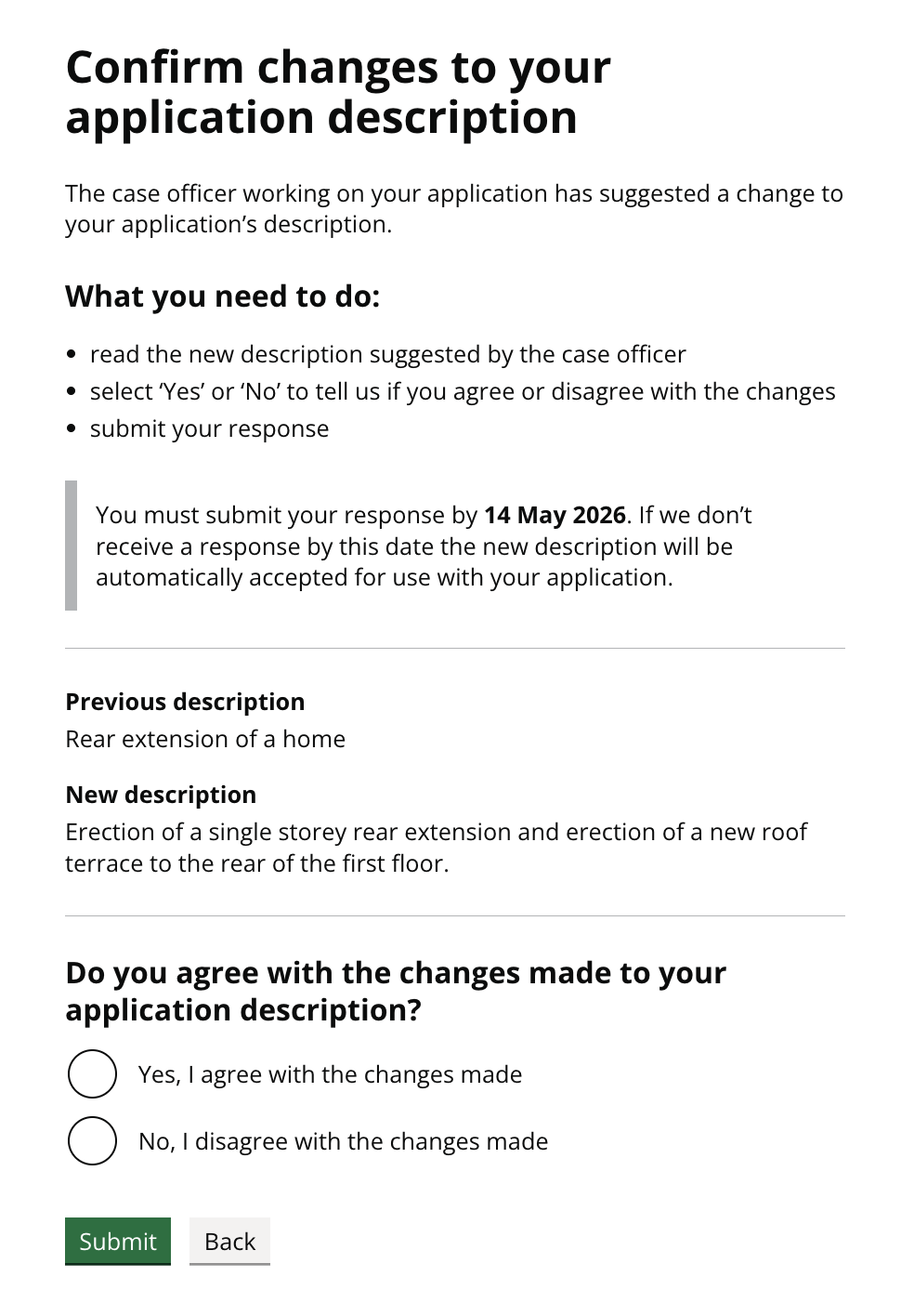
Agree / Disagree
Used when the officer proposes a change and needs the applicant's agreement to proceed. The applicant sees what was submitted, what is proposed, and chooses to agree or disagree. If they disagree, they must provide a reason.
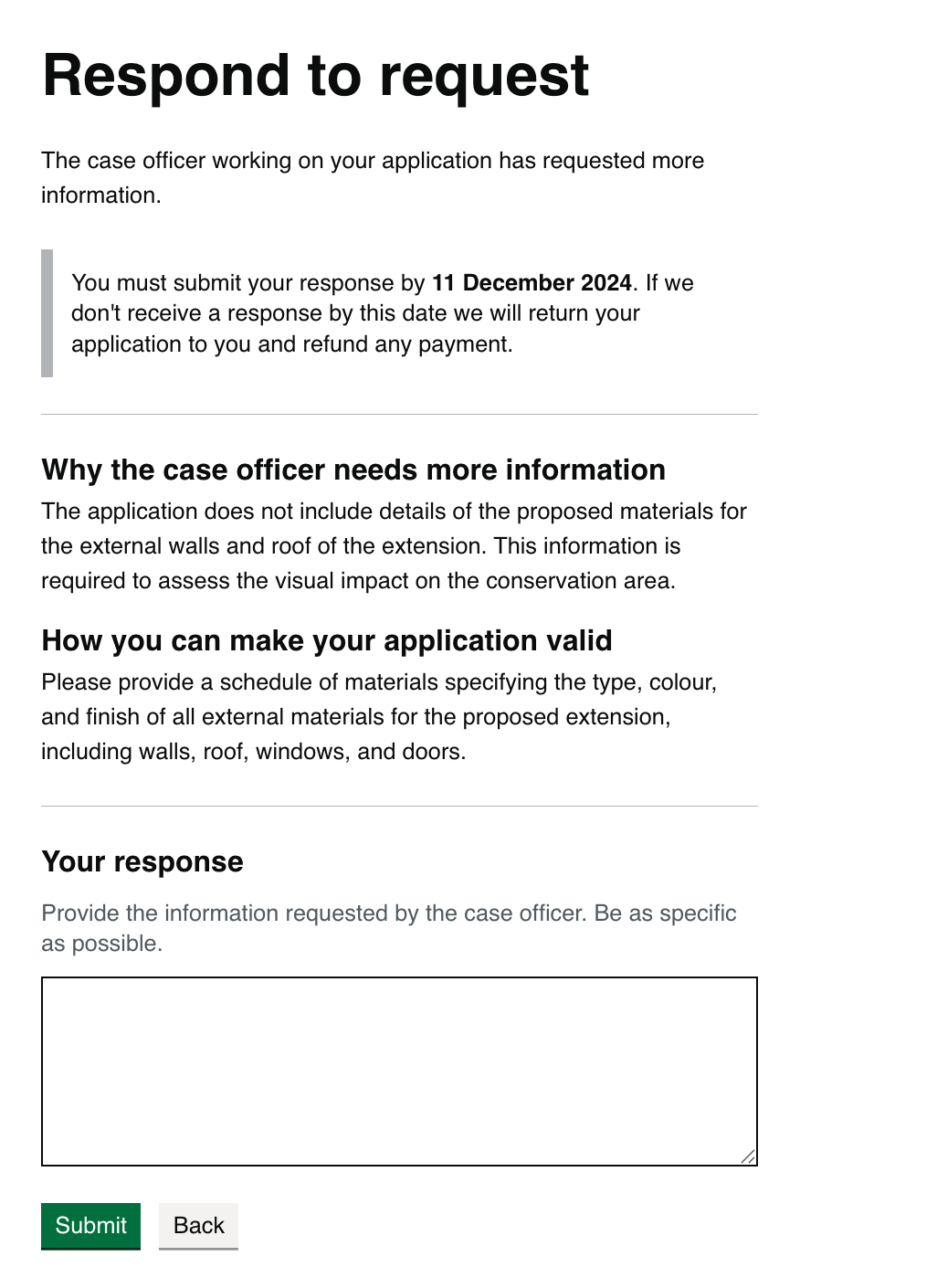
Free text
Used when the officer needs the applicant to provide information in their own words. The applicant sees the officer's reason for the request and a suggestion for how to resolve it, then writes a free-text response.
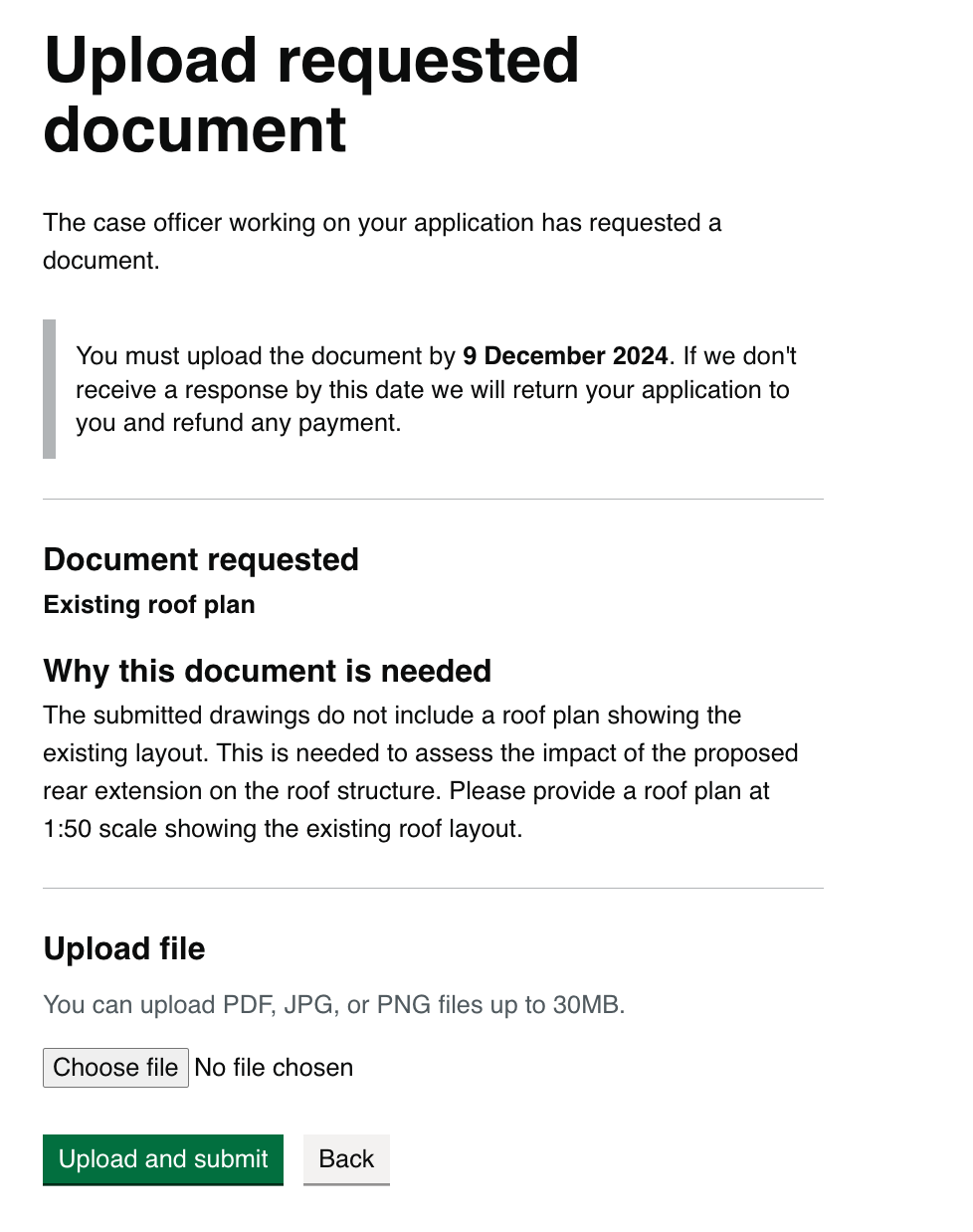
Document upload
Used when the officer needs the applicant to provide new or replacement documents. The applicant sees what document is needed and why, then uploads the file.
Confirmation
After submitting any response, the applicant sees a GOV.UK confirmation panel. This is identical across all request types.
Research and learnings
Why we created the pattern
BOPS originally had no structured way for officers to communicate validation issues to applicants. Officers sent emails explaining what was needed, and applicants replied by email. This created several problems:
Context got lost. Email threads about validation issues were buried in individual inboxes. If an officer was away, no one else could pick up the conversation. If an applicant replied weeks later, the officer had to re-read the chain to remember what was outstanding.
Every officer did it differently. Without a standard structure, one officer might write a detailed explanation while another sent a one-line request. Applicants received inconsistent communication depending on who handled their case.
There was no team visibility. The rest of the team had no way to see which issues had been raised, which were resolved, and which were still waiting for a response. Progress tracking happened in people's heads, not in the system.
Responses were unstructured. Applicants replied in free-form email, sometimes addressing the wrong issue or providing information in a format that was hard to process. Officers had to manually interpret responses and update the system.
The checking information with an applicant pattern replaces all of this with a structured in-system interaction. The officer creates a request targeting a specific issue, the system sends a notification with a secure link, the applicant responds through a structured form, and the officer reviews the response — all tracked with statuses visible to the whole team.
Despite there being 10 different request types in the system, they all follow the same lifecycle and fall into just 3 response types (agree/disagree, free text, or document upload). This pattern documents the shared skeleton so that new types can be designed consistently and existing types can be improved against a documented baseline.
This is an evolving pattern. For information about any of our patterns, get in touch.